
Key takeaways
- Fake virus alerts are browser scams, not proof of an infection. They’re designed to trick you into downloading malware, handing over personally identifiable information (PII), purchasing unneeded software, or calling a fake tech support number.
- Stay calm, and don’t interact with the alert. Close the browser tab (or force-close). Don’t click through or call any phone numbers.
- Spot the telltale signs of a fake alert, including browser-based warnings with urgent language, countdowns, phone numbers, or messages urging you to install software. Legitimate security alerts come from your operating system or installed antivirus software, not a website.
- Simply seeing or clicking a pop-up doesn’t usually compromise your device. The real risk comes from downloading files, installing software, entering passwords or payment details, or giving scammers remote access.
- Turn off scam browser notifications at source, never by clicking through on the pop-up. Clear your browser history, cookies, and cache, and run a full security scan for extra peace of mind.
- Practice good digital hygiene. Reduce scareware risks by keeping your browser and antivirus software up to date, avoiding suspicious websites and links, and relying on trusted antivirus protection.
What is a fake virus alert? The anatomy of browser scareware
There are few things more alarming than opening your laptop to see a warning pop-up flashing on your screen. But don’t panic. There’s a good chance that it’s only a fake virus alert. These are a popular way for scammers to trick you into downloading malware, handing over personally identifiable information (PII), purchasing unneeded software, or calling a fake tech support number.
But the truth is that fake virus alerts are browser-based redirections, often coming from deceptive domains, malicious ads and suspicious websites. They don’t indicate a genuine security issue with your device.
Fake warning pop-ups could take one of several forms:
- Web push notification: Appears outside the active browser window after permission is granted
- In-page pop-up or overlay: Exists within the webpage
- Redirect: Sends the browser to another page
- Malicious advertisement: May trigger a redirect or deceptive landing page
- Native alert: Generated by the operating system or installed antivirus software
In 2025, ESET discovered a scareware campaign distributing fake antivirus alerts and technical issues warnings via more than 250 ads between February and April 2025 until it was shut down by Meta.
Image: Screen grab of a scareware ad. This particular ad is mimicking a virus alert.
A fake virus alert
“A fake virus alert is a deceptive, browser-based pop-up or notification designed to mimic legitimate antivirus software or operating system alerts. It is generated by malicious websites using push notifications or redirects to trick users into calling fake tech support lines, purchasing unneeded software, or sharing sensitive information.”
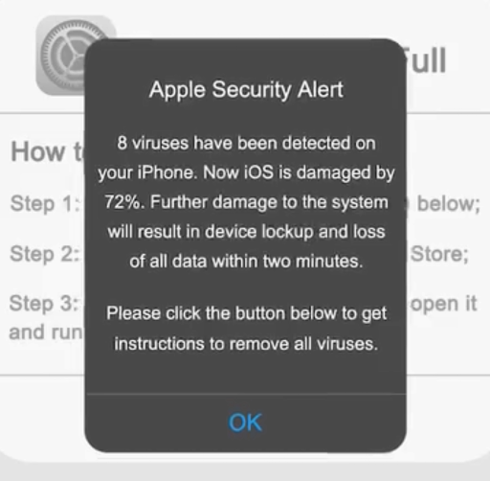
What to do right now if you see a fake virus alert
If you see a virus alert on your device, don’t panic or rush to the conclusion that your device is infected. The alert may be fake. Work through the following steps, depending on your circumstances:
If you: Do this: Only saw the alert Close it and revoke notification permission Clicked but downloaded nothing Close the page, inspect downloads, and scan if uncertain Downloaded a file Do not open it; delete or quarantine it and scan Ran or installed something Disconnect as appropriate and perform a full system scan Entered a password Change it from a trusted device and enable multi-factor authentication (MFA) Entered payment details Contact your payment provider through an official channel Allowed remote access End the session and follow incident-response guidance
Real security alerts vs. deceptive browser notifications: How to tell the difference
While the pop-up on your device might be a fake virus alert, there’s also a chance it could indicate a genuine security issue. So how do you tell if a virus warning is real or not?
One of the surest ways is to check the language. Scams are designed to trick you into taking action by creating a sense of urgency. In this case, it could be a pop-up claiming that your data will be lost if you don’t act, or that your machine is infected with a dangerous virus.
Another way of checking if pop-up virus warnings are real is to see if there’s a phone number listed. Legitimate warnings won’t have one. Fake ones will try to trick you into speaking live with a fraudster impersonating tech support, or into following a malicious link. Equally, any message urging you to immediately download software to remove the “virus” is a telltale sign of a scam. Check suspicious links with the handy ESET Link Checker.
Fake warnings typically originate inside browser windows or web notifications, although malicious apps can deliver them, too. But real alerts come from (pre)installed antivirus software or the operating system. Legitimate antivirus software runs in the background, actively protects your device, and never requires calling a support number or paying via a retail gift card.
Fake warnings typically originate inside browser windows or web notifications, but they can also be delivered by malicious applications, while legitimate alerts come from legitimate antivirus software or the operating system (OS). Fake warnings often include a phone number to call, or encourage the user to download software to remove the “virus.” And they typically use urgent language to scare you into making an unwise decision.
Inside the scam: Exposing the “tech support” parlor tricks
There are several reasons why you might have encountered a fake virus warning. You might have visited a malicious website, clicked on a malicious ad or phishing link, or unwittingly installed adware. The good news is that the popup itself won’t usually infect your device. But it might lead to infection if it tricks you into installing malware disguised as security software — or if you call the number on the alert.
Fake tech support scammers are ready and waiting on the other end of the line. They’ll impersonate representatives from Microsoft or other trusted companies/institutions. And they’ll usually try to take remote control of your machine by telling you to install legitimate remote access software.
The end goal is to obtain your PII and/or money. They may do this by redirecting you to fake websites impersonating well-known cybersecurity vendors to steal passwords and other login credentials, as well as credit card details. They may also demand Amazon gift cards as payment for supposed work to remove a nonexistent virus.
The safety boundary: Does just clicking the pop-up infect your device?
Scammers often impersonate trusted technology and cybersecurity brands to improve the success rate of their campaigns. But merely clicking on a fake virus alert usually won’t infect your mobile device or computer.
However, the risk of infection increases if you follow malicious instructions to download or open a file, install an app or extension, grant remote access to call center scammers, enter login credentials, or grant additional permissions.
Legitimate cybersecurity vendors do not generate fake virus alerts, but scammers often spoof these vendors’ branding to do so inside browser-based pop-ups. If you’re a customer, open the vendor’s app directly to check if there’s anything wrong. If not, the popup is definitely a scam.
Platform resolution paths: How to turn off scam browser notifications
So how do you get rid of a fake virus alert safely? Never follow the directions on the pop-up. Even clicking a “Cancel” button or the window’s “X” close box may secretly redirect you to a malicious site. Instead, close the browser tab directly, or use Ctrl + Alt + Esc on Windows to open Task Manager (or force-quit on Linux). Then find your browser in the open task list, and force-close the program. Press Option (or Alt) + Command + Esc to force-quit an app on Mac.
Next, depending on the machine or device you’re using, consider taking the following steps:
Chrome on Android: Tap the three vertical dots (⋮) in the address bar → Settings (⚙️) → Notifications. Review the list of allowed domains and remove any suspicious entries, or turn the “All Chrome notifications” slider to Off.
Google Chrome: Enter chrome://settings/content/notifications directly into your address bar. Under the “Allowed to send notifications” section, remove any suspicious entries. Turn “Don’t allow sites to send notifications” to On.
Mozilla Firefox: Go to the Application Menu (the hamburger icon with three horizontal lines) → Settings → Privacy & Security. Scroll down to Permissions → Notifications, and select Settings. Remove any suspicious entries, or click “Remove all websites,” and optionally check “Block new requests asking to allow notifications.” Then click “Save Changes.”
Microsoft Edge: Enter edge://settings/content/notifications in the address bar. Disable “Ask before sending.” In the “Allowed to send notifications” section, click the three dots (⋯) next to any suspicious domain, and select “Remove.”
Safari on MacOS: Open Safari and go to Settings → Websites → Notifications. Find the suspicious or unrecognized website, and change its permission to Deny. To prevent future notification requests, deselect “Allow websites to ask for permission to send notifications.”
If notifications continue, open Apple menu → System Settings → Notifications. Under Application Notifications, select the suspicious website and turn off Allow Notifications. Website notifications can appear even when Safari is not open, so check both Safari’s website permissions and macOS notification settings.
Safari on iPhone or iPad: If the fake alert appears only while a webpage is open, close the Safari tab without tapping buttons, links, or phone numbers displayed on the page.
If alerts continue outside Safari, identify whether the website was added to the Home Screen as a web app. Open Settings → Notifications, select the relevant web app under Notification Style, and turn off Allow Notifications. You can also swipe left on one of the app’s notifications, select Options, and choose Turn Off.
Clear your browsing data: Clearing your browser history, cookies, and cache can help get rid of any residual notification spam.
Finally, consider running a full scan or a startup scan with ESET. This free malware check for Windows can help you remove adware from your device. Check out ESET’s dedicated guide on how to remove browser notifications.
To get rid of a fake virus warning on Android: 1. Open Google Chrome. 2. Tap the three dots and select Settings. 3. Go to Site Settings and tap Notifications. 4. Find the suspicious website under “Allowed,” and deselect “show notifications.”
Wise device discipline: Keeping deceptive pop-ups off your screen
Fake virus pop-ups are a popular way for scammers to trick you into handing over cash or personal/financial information. But they rarely indicate a serious security issue with your mobile device or computer. The key is to stay calm, never click on the pop-up or call the number, and work through the steps listed above.
In the long term, practicing strong digital hygiene will keep you safer from scareware. That means things like keeping your browser and antivirus software up to date and avoiding suspicious websites and links.
Use lightweight antivirus software like ESET Home Security to automatically keep fake warnings off your device through proactive threat defense.

Tips from an ESET expert
“Fake virus alerts can pop up on a website and are designed to create fear by worrying people that their device might be infected with malware. However, in most cases, they’re simply pop-ups designed to look like official notifications that pretend to be legitimate security warnings. They are designed to encourage people to follow malicious instructions, such as downloading software or calling a fake support number where a scammer usually goes on to ask for remote access to their computer. Therefore, if a warning appears in your browser, it is best to close the page and run an antivirus scan to be safe.”
- Jake Moore, Global Security Advisor
Frequently asked questions
How do I know if a virus alert is fake?
Legitimate security warnings from your operating system or natively installed antivirus software (like ESET) always display from native local applications, not within web browser tabs. If an alert is flashing inside your browser window, threatens that your device is “100% infected,” runs a countdown timer, or demands that you dial a support phone number, it is a fake virus warning.
How do I close a fake virus alert?
Never click “OK,” “Cancel,” or an “X” close box inside the popup window itself, as these can trigger additional redirects. Instead, safely close the browser tab. If your screen is locked, press Ctrl + Alt + Esc on Windows to open the Task Manager (or force-quit on Linux), select your browser under the open task list, and close it entirely.
Do legitimate anti-virus and cybersecurity vendors generate fake virus alerts?
No, legitimate security brands do not send browser-based pop-up alerts stating that your computer has viruses. Scammers heavily spoof and abuse market-leading brands to create deceptive pop-ups and push notifications to trick users into calling scam phone lines or paying for fraudulent renewals.
How do I get rid of a fake virus warning on Android?
To stop a fake alert popup, safely close your browser tab. If notifications keep appearing, navigate to your browser’s settings, select “Site Settings,” and then choose “Notifications.” Under the “Allow” list, find any suspicious domains and deselect “show notifications.” Clear your browsing cache, cookies, and temporary files to clean the environment.